Cart and Checkout
Overview
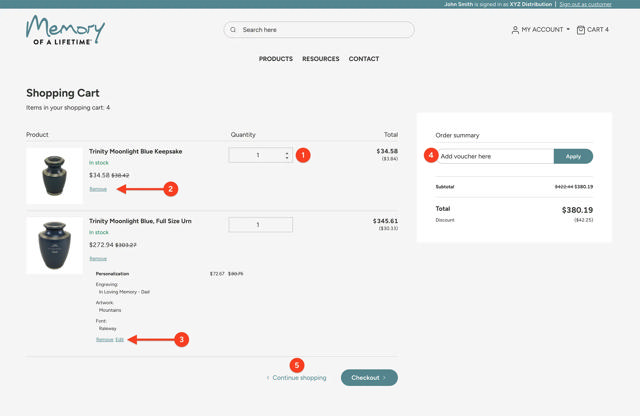
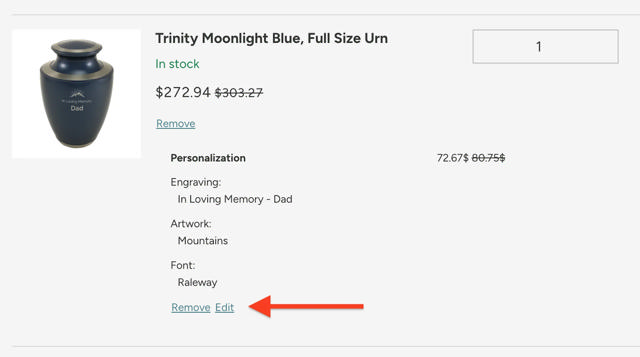
To access your full cart, click the cart icon in the header from any page. The cart displays all items added to your cart, including personalization, quantities, and (if applicable) prices.

Actions you can take from the cart page
- Change the quantity of the product
- Remove products
- Edit or remove personalization from a product
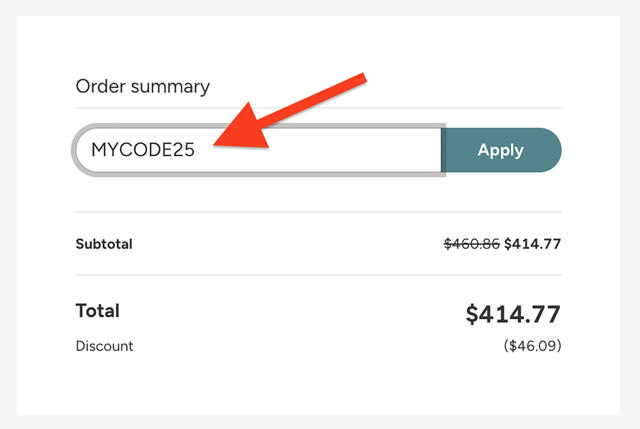
- Add a voucher or promo code (if applicable)
- Continue shopping to add more products to the cart
Update Quantity
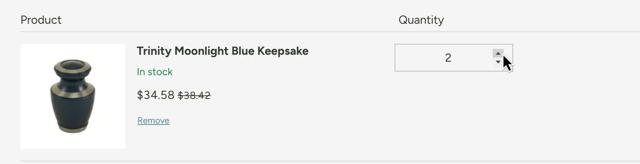
To adjust the quantity, move your cursor over the current quantity and adjust the using the arrows that appear next to the product quantity, or select the quantity, enter a new quantity, and press enter to save your new selection. Your cart will update to reflect the change.
Remove Product
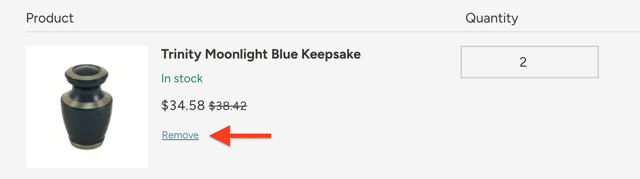
To remove a product entirely from your cart, click the “Remove” button below the product name.
Remove or Edit Personalization
- Remove personalization by clicking the remove button underneath the personalization details.
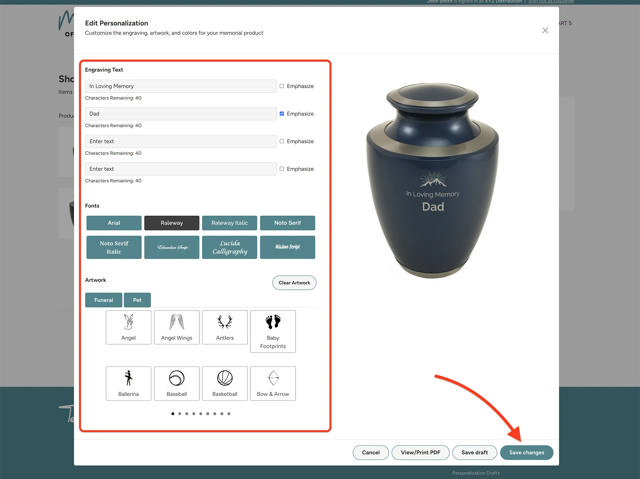
- Edit the personalization details by clicking the edit button below the personalization details, updating them in the popup that appears. Click Save changes to update the item in your cart.
Add a Voucher Code
Only available to Wholesalers
If you have a voucher code, add it to the field on the right and click apply. If your code is valid, your code will be added to the order, and your cart will recalcuate.
Check Out
Click Checkout to continue the check out process.
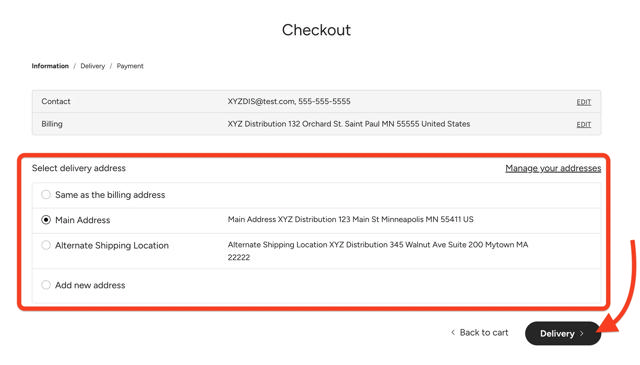
Select Shipping Address
Choose a shipping address from the list or add a new one. Click on Delivery to continue to the checkout process.
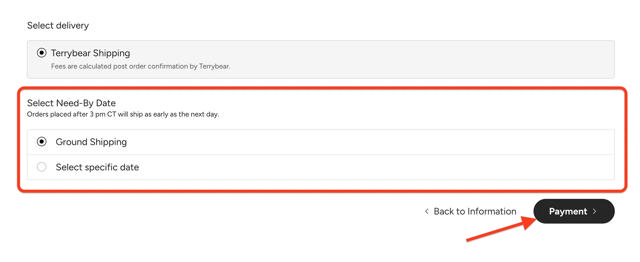
Choose a Need-by Date
Choose your desired delivery date. Terrybear will choose an appropriate shipping method to ensure your order arrives on time. Note that orders that require expedited shipping to guarantee delivery by the desired date may incur additional charges for these services.
Click payment to continue the checkout process.
Payment and Order Details
Payment
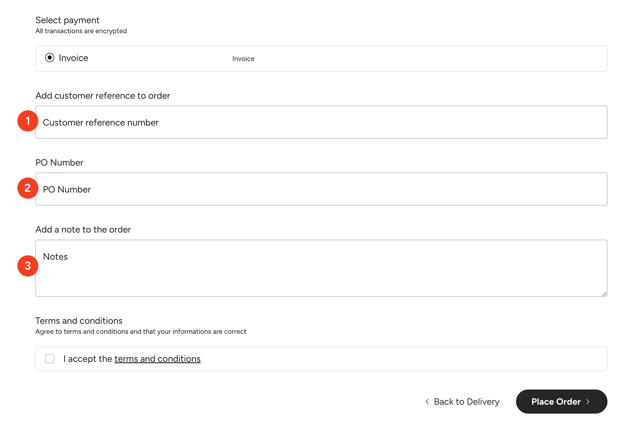
No payment is collected on Memory of a Lifetime. The payment method is determined by your account relationship with Terrybear and is shown only for reference.
Order Details
Add additional order details if relevant:
- Customer Reference Number - for additional identification for shipments such as case number, decedent name, family name, etc.
- PO Number - if you have a company purchase order number, enter it here
- Comments - enter any notes or special instructions for your order
Terms and Conditions
Confirm that you have reviewed the terms and conditions of the site and accept them
Submit Your Order
Once all order details are entered, click Place Order to submit your order.
Note: all purchases are reviewed by Terrybear staff before the order is fulfilled.
Checkout Complete
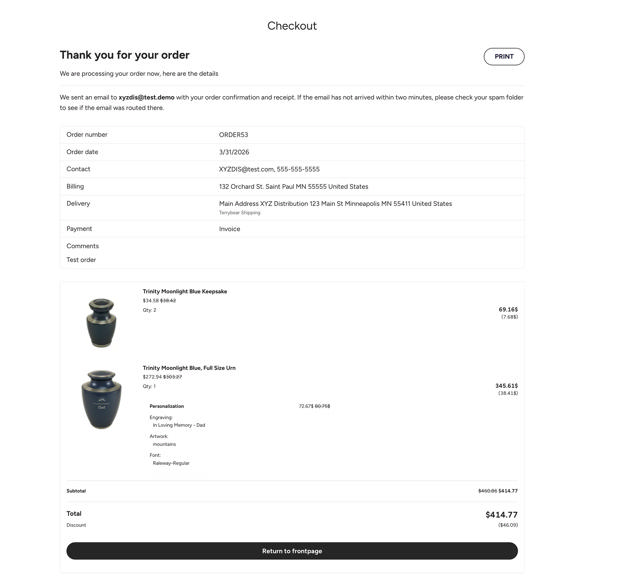
Once you have placed your order, you are taken to a summary of the order you just placed. You can print this page for your records. You will also receive an order confirmation at the notification email address designated for your account in the Customer Center.
Track the status of your order in the Customer Center.