
Customer Center
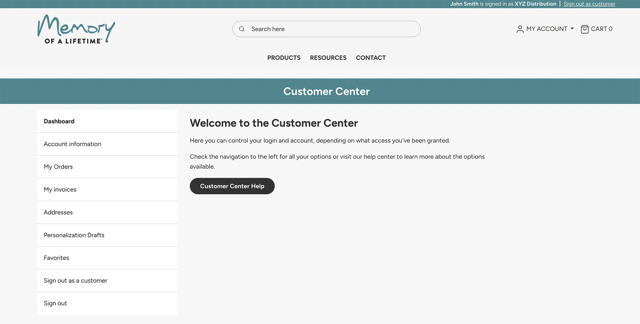
Your hub for managing your account
Choosing an account to manage
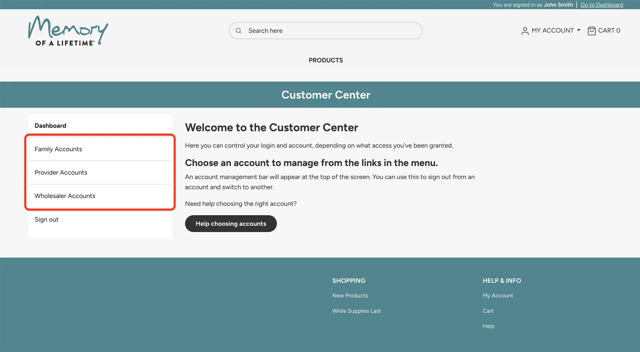
Depending on your account setup, when first logging in, your customer center may ask you to choose an account to manage. On Memory of a Lifetime, you have the ability to manage your company’s account as well as the accounts of companies and people that order through you.
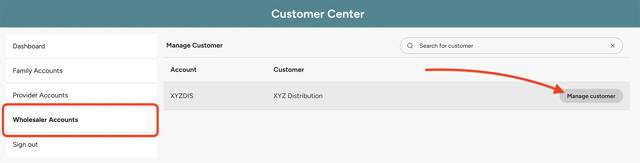
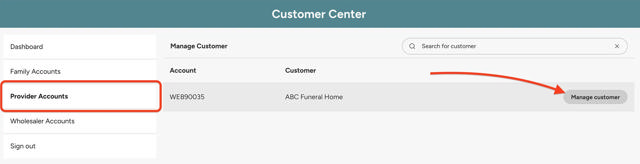
Before you start ordering products, use the menus on the left side of the screen to find your account. Each option will present a list of accounts you have access to with their name and customer number. Choose your company from the list.
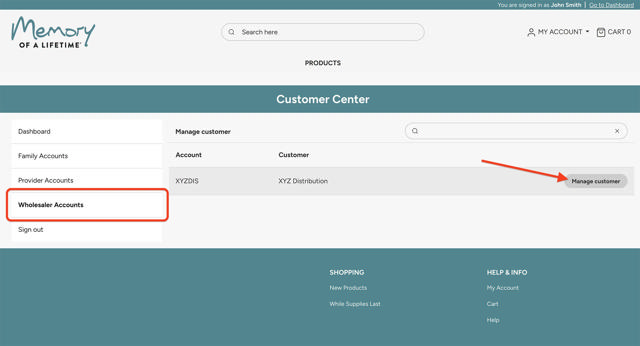
What kind of account am I logged into?
Account Types
There are three customer account types on Memory of a Lifetime.
Wholesaler Accounts
Wholesalers purchase products directly from Terrybear.
When logged in as a wholesaler, you will see the price that you pay Terrybear for your products.
If you have registered provider accounts, you will also see the option to manage their accounts to provide support or place orders on their behalf.
Provider Accounts
Providers place orders to Terrybear through your trusted wholesaler on behalf of your family customers.
If you are a provider, this is where you place your regular stock orders and your customer orders. When managing a provider account, no prices will be displayed.
When logged into this account, you will see your order history for all your orders whether they were placed by you using your provider account or family account, or placed by one of your customers.
This is also where you may upload custom pricing, invite Families to sign up and order products from you and approve orders placed by your customers.
Family Accounts
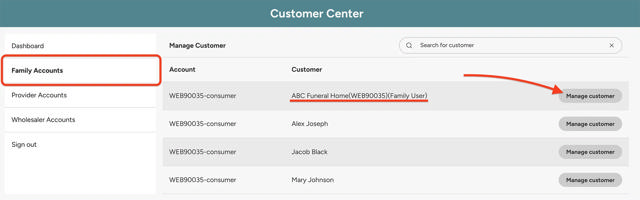
Families place orders to the Provider account they registered with. They see the retail price uploaded by their provider.
Family accounts only see the order history for orders placed while logged into that account, and families you have registered as a provider cannot see or have access to other family accounts.
Orders placed by a family account must be approved by a provider in order to be processed.
To view the site with your retail prices, sign out as your provider and sign in as a family account. Your dedicated family account is named Your Company Name(Number)(Family User)
Managing Your Account in the Customer Center
Account Information
Available to Providers and Wholesalers
Displays your customer information.
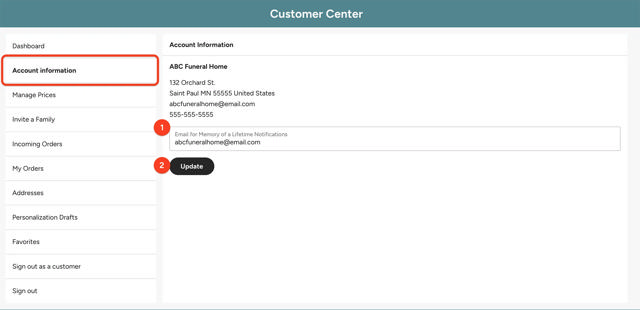
From here you can change the email address where notifications are sent for this account. All order confirmations and updates about your customers’ orders will be sent to this email address.
To update your notification email address:
- Edit the email address in the field
- Click update
- All future notification emails will be sent to this email address
Manage Prices
Available to Providers
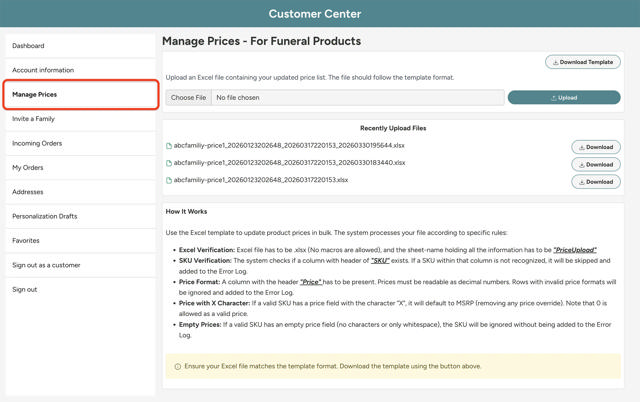
You may customize your site with your own retail prices to be displayed to your families or while browsing with your dedicated family account. To do so, add your prices to the spreadsheet template found in the customer center, and upload it to to this tab. If you have not uploaded a price, the current MSRP will be used.
For a detailed information about price management, see our guide.
Invite a Family
Available to Providers
The family ordering experience is simple and straightforward. Families simply register an account, browse products, personalize items, and submit orders. The site displays the prices you have uploaded.
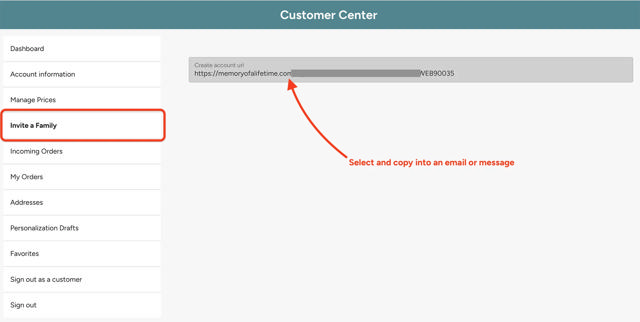
How to Invite a Family
- Copy the “Create account URL” link from the Invite a Family page.
- Paste that link into an email or message and send it to your customer.
- Your customer will be able to use that link to enter an email and password for a family account associated with you.
- Your customer will receive an email to verify their email address. They must follow the instructions in the email before using their account.
IMPORTANT: This link is unique to you. Use the same link for every family that registers with you.
Incoming Orders
Available to Providers
This is where you manage orders placed by your families. After your customer has placed an order, log in to your provider portal to approve the order. From here you can add the items to your cart, check out and add any other order details.
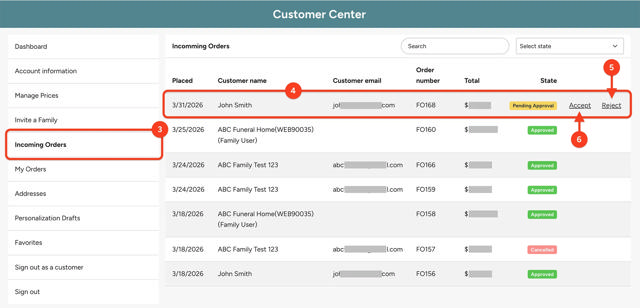
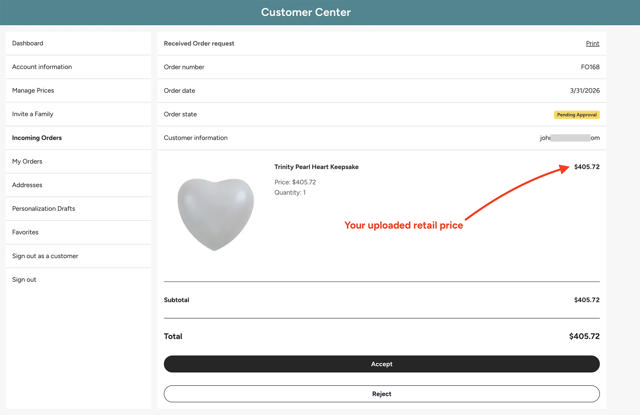
The Process
- Family places an order. They will receive an order confirmation that includes your retail prices.
- Once your family places an order, you will be notified by email that you have a new order to review.
- Locate the new order pending approval on the Incoming Orders screen using the order number provided in the email.
- You can choose to approve or reject an order from this screen, or you can click on the order for more details.
- To cancel the order, click “Reject”. The status of the order will be updated to canceled, and your family will be notified by email.
- To accept the order, click “Accept.” Products will be added to your cart and you will begin the checkout process, where you can add shipping details, order notes, etc. The order will be updated to “Approved.”
IMPORTANT: You must complete checkout for the order to be processed. - Once you have submitted the order, you, your family, and your wholesaler will all receive email confirmations that your order has been approved and submitted.
My Orders
Available to Families, Providers, and Wholesalers
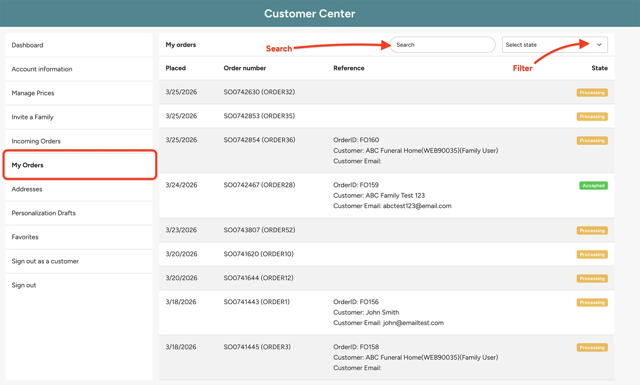
All of your submitted orders are listed on the My Orders page. Here, wholesalers can see orders placed by themselves and by their provider accounts. Providers see all orders they have submitted to their wholesalers. Note that orders placed by families that have not been approved can be found in “Incoming Orders.” Families see only the orders they have placed.
Filter orders by order state or search.
Wholesaler Orders Screen
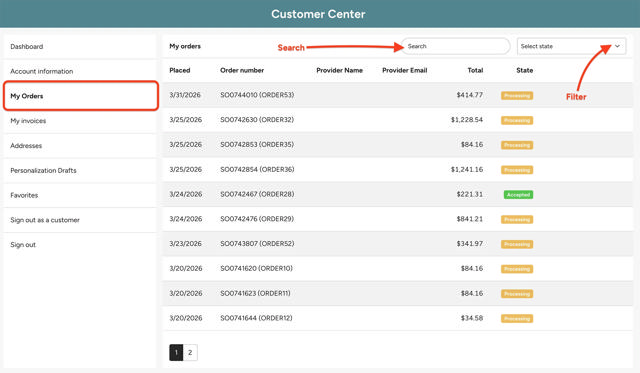
Provider Orders Screen
My Invoices
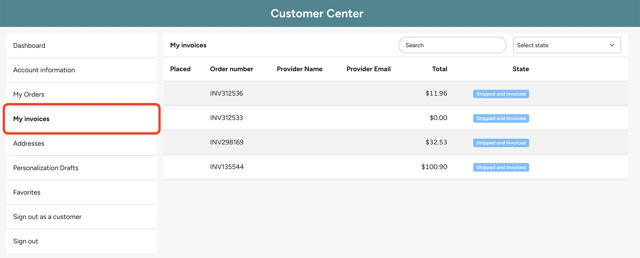
Available to Wholesalers
Lists all orders that have been shipped and invoiced, regardless of whether they were placed on Memory of a Lifetime or not. Search or filter by order state to find specific invoices.
Addresses
Available to Providers and Wholesalers
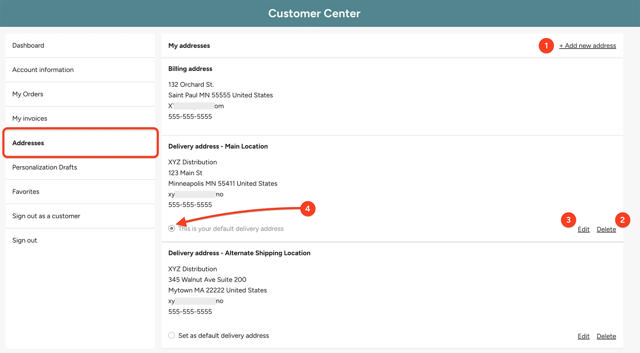
Manage the shipping addresses available for this account. Note that your billing address cannot be edited on Memory of a Lifetime. To modify it, contact your Client Solutions Manager at Terrybear.
From this screen, you can...
- Add a new shipping address
- Delete a shipping address
- Edit a shipping address
- Set an address as your default shipping address
Personalization Drafts
Available to Providers and Wholesalers
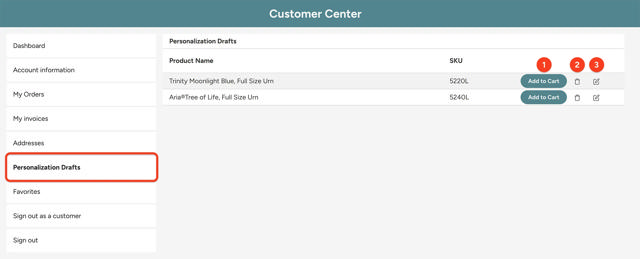
Personalization proofs created using QuickProofs can be saved to a draft list. From the draft list you can perform the following actions:
- Add your draft to your cart.
- Delete the draft.
- Edit the personalized item draft.
Note: Drafts are not automatically deleted. We recommend deleting customer drafts as orders are submitted or cancelled so the list does not become cumbersome to manage.
Favorites
Available to Families, Providers, and Wholesalers
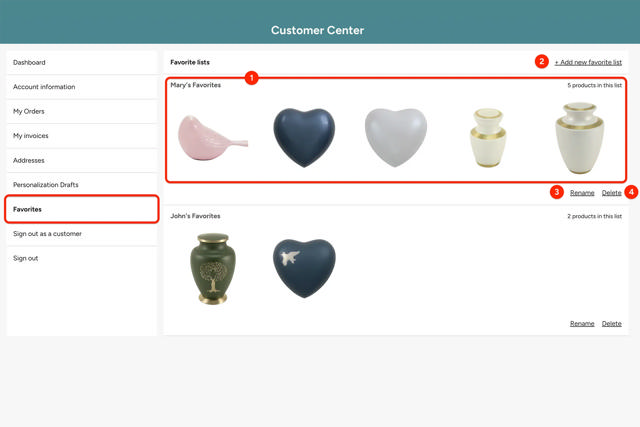
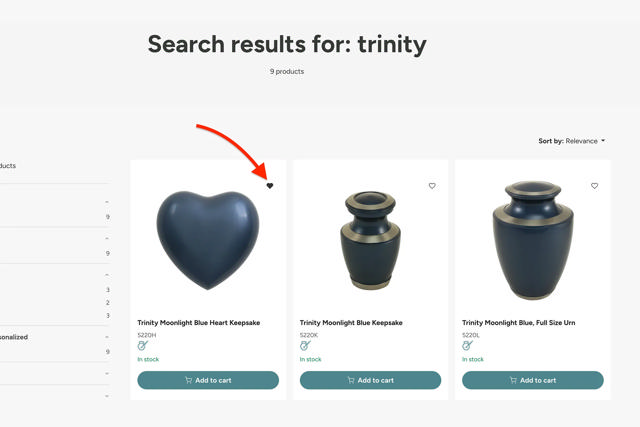
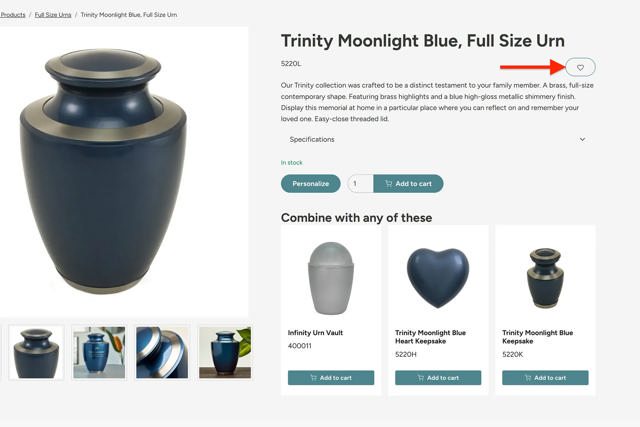
Favorites allow you to save your favorite products for easy access. Add a product to your favorites by clicking the heart icon near the product from anywhere on the website. From the favorites page, you can perform the following actions:
- Open your favorites list
- Add a new favorites list
- Rename your favorites list
- Delete your favorites list
To add a product to your favorites list, search for a product and click the heart icon that appears next to it.
Sign out as customer
Available to Providers and some Wholesalers
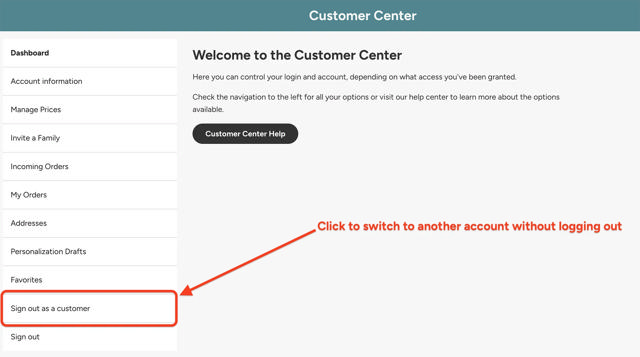
Immediately signs you out of the customer account you are managing so you can choose a different customer to manage. As a provider, use this button to switch between your provider and family portals. As a wholesaler, use this to switch between your wholesaler account and any provider accounts you also manage or support.
IMPORTANT: This action does not log you out of Memory of a Lifetime. You remain logged in with your email address and password.
Sign out
Available to Families, Providers, and Wholesalers
This button logs you out of your user account entirely. To log back in, enter your email address and password from the sign in page.
